Microsoft Excel is the world’s leading spreadsheet tool, used by students, professionals, and businesses to analyze, organize, and visualize data. With powerful formulas, charts, PivotTables, and AI-powered Copilot, it offers seamless collaboration across Windows, macOS, mobile, Linux (web), and cloud.
Microsoft Excel isn’t just another spreadsheet tool—it’s the platform that has transformed how billions of people organize, analyze, and visualize data across the globe. From students preparing school projects to accountants managing complex ledgers, to data analysts building financial forecasts, Excel has become an essential productivity tool for businesses, professionals, and individuals.
Over the years, Microsoft Excel has evolved significantly, with major versions like Excel 2007, Excel 2013, Excel 2019, Excel 2021, and the subscription-based Microsoft 365 Excel. Each version brings unique features, collaboration tools, and performance improvements, which can make it confusing for users to know which edition suits their data management needs best.
We decided to write this Microsoft Excel review to clear up the confusion and provide a thorough, honest guide. By testing the latest Microsoft 365 Excel version alongside classic one-time purchase editions, and by analyzing user feedback from forums, Reddit, and tech communities, we’ve examined Excel’s strengths, limitations, and standout features. Let's start with its basic overview.
Basic Overview
Microsoft Excel first appeared in 1985 and has since become the world’s most popular spreadsheet software. Over the years, it has transformed from a simple number-crunching tool into a full-fledged platform for business analysis, data visualization, forecasting, and automation.
Its user base is massive: from students learning basic formulas, to financial experts designing complex investment models, to researchers handling thousands of data points. Even casual users rely on it for budgeting, project planning, or managing household expenses. Simply put, Excel is everywhere, from classrooms and offices to government organizations and Fortune 500 companies.
What It Promises
Microsoft positions Excel as the ultimate spreadsheet tool with smart capabilities. It promises:
Intelligent spreadsheets with built-in AI-powered insights.
A vast library of functions and formulas for data analysis, finance, and statistics.
Seamless integration with Office 365 for real-time collaboration.
Advanced visualization with charts, graphs, and conditional formatting.
In short, Excel claims to not just help you store data, but to help you understand it and make smarter decisions.
Our Testing
We tested multiple versions of Excel—covering both offline desktop editions and cloud-powered services. Our review included working with large spreadsheets (over 50,000 rows), testing compatibility with formats like XLS, XLSX, and CSV, and trying advanced features like Pivot Tables, Power Query, and macros.
We also evaluated Excel’s performance in handling network-shared files and collaboration tools, especially in 365.
Features That Stood Out
Pivot Tables & Charts
Pivot Tables remain one of Excel’s most powerful features. They allow users to summarize, analyze, and drill down into large datasets with just a few clicks. Combined with charts, they make complex information understandable, helping professionals and students alike spot trends and patterns.
Conditional Formatting
This feature turns raw data into visual insights instantly. By applying rules, you can highlight trends, risks, or goals with colors and icons. For managers or teachers tracking performance, it adds an intuitive layer of understanding without needing external tools.
Power Query & Power Pivot
For advanced users, Power Query and Power Pivot are game changers. They allow you to import, transform, and model massive datasets from multiple sources. Business analysts particularly benefit from this, as it eliminates the need for extra software in many cases.
Real-Time Collaboration (Excel 365)
Excel 365 makes working in teams smoother with real-time editing. Multiple users can edit a file simultaneously, track changes, and leave comments—something older versions never offered natively. This feature bridges the gap with tools like Google Sheets.
Advanced Functions (XLOOKUP, FILTER, etc.)
Newer versions introduced advanced formulas like XLOOKUP and FILTER that make data analysis faster and easier. These functions save time compared to older, more complicated formulas like VLOOKUP. It shows Excel is still evolving.
Data Visualization (Sparklines, Maps)
Beyond standard charts, Excel offers sparklines (tiny in-cell charts) and even 3D maps for geographical data. These visuals help transform spreadsheets into reports that are easier to read and present.
Cross-Platform Access
Excel works on Windows, Mac, web, and mobile. With Office 365, you can pick up where you left off on any device. This flexibility is vital for professionals who travel or students who switch between a laptop and a phone.
Automation with Macros/VBA
For power users, Excel’s macro and VBA scripting capabilities are unmatched. They let you automate repetitive tasks, build custom functions, and even create full applications inside Excel.
Templates for Business & Education
Excel comes with hundreds of templates for budgets, invoices, planners, grade sheets, and more. This lowers the barrier for new users who don’t want to start from scratch.
Features That Need Improvement
Steep Learning Curve
Excel can be intimidating. While beginners can manage basic tasks, advanced functions, macros, and Power Query require significant learning, which discourages casual users.
Large File Performance Issues
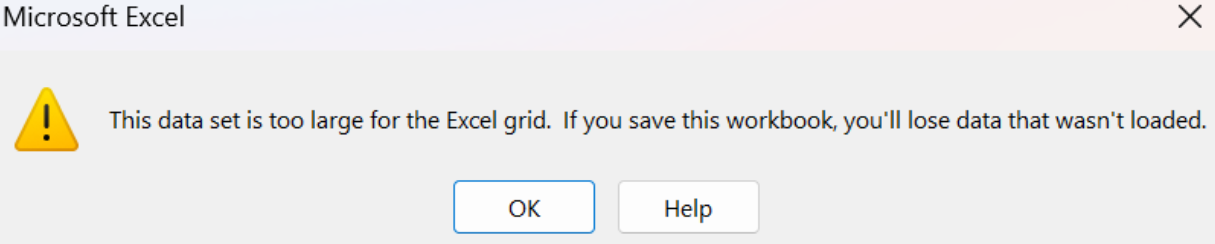
Handling files with hundreds of thousands of rows can slow Excel down, even on powerful PCs. Crashes and lag are not uncommon with extremely large datasets.
Collaboration Lag in Desktop Versions
While Excel 365 offers great teamwork features, the offline desktop versions still struggle with collaboration. Sharing via email or local networks feels outdated compared to Google Sheets’ smooth approach.
Complex Formula Management
Formulas can become overwhelmingly complicated, especially when linking multiple sheets or files. Without proper management, they’re hard to debug or share with others.
High Price Compared to Alternatives
Excel isn’t cheap. While Google Sheets and LibreOffice Calc are free, Excel requires either a one-time purchase or a Microsoft 365 subscription, making it less accessible for casual users.
What Users Really Think About Microsoft Excel
After reviewing real feedback from Capterra and G2, one thing stands out—Microsoft Excel remains the go-to tool for spreadsheets. Users love its powerful formulas, pivot tables, and macros, making it useful for everything from school projects to high-level business analysis. Many reviews highlight how easy it is to set up basic tasks, while advanced features give professionals the flexibility to dive deep into data.
Still, Excel isn’t perfect. On both platforms, users often mention that large datasets slow it down and that mastering advanced tools like automation or complex functions comes with a steep learning curve. Beginners may find it overwhelming at first, and heavy users sometimes turn to databases or BI tools when Excel starts lagging. In short, reviews agree: Excel is a powerhouse with limits—fantastic for everyday work, but not always the best for massive data or complex workflows.
Comparison with Similar Tools
When we tested Microsoft Excel against Google Sheets, LibreOffice Calc, and Apple Numbers, some clear differences appeared. Google Sheets is excellent for real-time collaboration and works entirely in your browser without installation. It’s perfect for students, casual users, or small teams who want fast sharing and easy access. However, it lacks the depth and advanced functions of Excel, such as PivotTables, Power Query, and VBA automation, which are crucial for data analysis.
LibreOffice Calc is a free, offline alternative with many useful spreadsheet tools. It’s suitable if you want a no-cost option that works offline, but its interface feels outdated, and it struggles with Excel file compatibility, especially complex formulas or charts. For professional use, it’s decent—but not nearly as polished or powerful as Excel.
Apple Numbers has a clean, attractive design and works smoothly for basic spreadsheets and simple data visualization. It’s great for casual users or light personal projects, but it’s not built for large datasets, complex calculations, or professional business use.
Overall, Microsoft Excel remains the most powerful and versatile spreadsheet software. Its advanced features, cross-platform support, and industry-standard acceptance make it the go-to choice for professionals, businesses, and data analysts. If you need simple collaboration or free access, Google Sheets or LibreOffice Calc may work, and Apple Numbers fits well for light, visually appealing projects. But for heavy data work, analytics, and professional reliability, Excel is unmatched.
Our Final Thought
At Fileion, we see Microsoft Excel as more than just software—it’s a professional standard. Yes, it has a learning curve, and yes, it costs more than some competitors. But its unmatched features, cross-platform access, and deep integration into business ecosystems make it worth every bit.
If you need a spreadsheet tool that grows with you—from basic budgeting to advanced analytics—Excel is the tool you’ll want in your toolkit.
Hi, I’m Ishrat, Junior Content Writer at Fileion. With a strong passion for tech and a background i...
1
Followers
0
Following
Software Content Writer
Hi, I’m Ishrat, Junior Content Writer at Fileion. With a strong passion for tech and a background in SEO, digital content, and web solutions, I craft stories that connect users to the tools they need. At Fileion, I turn complex topics into clear, helpful content, making tech feel simple and accessible for everyone. Let’s write something impactful!
FAQs
Frequently Asked Questions
Excel is far more powerful for advanced formulas, PivotTables, and macros. Google Sheets is simpler and great for live collaboration. Try Excel via Fileion to experience its advanced tools.
Look up the error code on Microsoft Support, or follow Fileion’s Excel troubleshooting guides. Common issues can be solved by repairing or reinstalling Excel from Fileion.
Excel Copilot is an AI assistant built into Excel that helps write formulas, clean data, build charts, and automate tasks. It’s included with Microsoft 365 subscriptions and you can learn more on Fileion.